
Lenovo Legion Go techniques can transform how players experience portable gaming. This Windows-based handheld device packs serious power into a compact form factor, but getting the most from it requires understanding its unique features. From detachable controllers to custom performance profiles, the Legion Go offers flexibility that sets it apart from competitors. This guide covers the essential techniques every owner should know. Whether someone just unboxed their device or has been gaming for months, these tips will help maximize performance, extend battery life, and unlock the full potential of this impressive handheld.
Table of Contents
ToggleKey Takeaways
- Mastering Lenovo Legion Go techniques starts with learning essential controls, including the Legion button for quick settings and the detachable controller options for versatile gameplay.
- Create custom TDP profiles in Legion Space to optimize performance for each game—use 8-15 watts for lighter titles and up to 25 watts for demanding AAA games.
- FPS Mode transforms the right detachable controller into a mouse-like device, offering superior aiming precision for first-person shooters.
- Extend battery life by reducing screen brightness to 40-50%, disabling Wi-Fi for offline games, and using Balanced or Quiet performance modes when possible.
- Use Legion Space to customize controller mappings, create game-specific profiles, and aggregate your entire game library from multiple platforms in one place.
- Experiment with resolution scaling and 40 FPS frame caps to achieve the best balance between visual quality, smooth gameplay, and power efficiency.
Getting Started With Essential Controls and Navigation
The Lenovo Legion Go ships with an 8.8-inch touchscreen and detachable controllers, giving players multiple input options right out of the box. New owners should first familiarize themselves with the physical button layout. The device features two analog sticks, a D-pad, face buttons, bumpers, triggers, and several additional inputs that provide quick access to system functions.
The Legion button on the right controller opens Legion Space, which serves as the primary interface for game management and settings. Pressing this button twice quickly returns users to the Windows desktop. The three-dot menu button on the left controller pulls up a quick settings panel where players can adjust brightness, volume, and performance modes without interrupting gameplay.
Lenovo Legion Go techniques for navigation include using the touchscreen in tablet mode. When both controllers are detached, the device functions as a Windows tablet with full touch support. This setup works well for turn-based games, visual novels, or browsing game libraries.
Players should also enable the on-screen keyboard shortcut. Holding the Legion button and pressing Y brings up the virtual keyboard instantly. This saves time when entering passwords, searching for games, or typing in chat.
Optimizing Performance Settings for Different Games
Performance optimization stands as one of the most important Lenovo Legion Go techniques. The device runs an AMD Ryzen Z1 Extreme processor with RDNA 3 graphics. These components deliver excellent performance when configured properly.
Legion Space offers three default performance modes: Quiet, Balanced, and Performance. Quiet mode limits the TDP to around 8 watts, extending battery life significantly. Balanced mode pushes 15 watts and handles most indie games and older titles smoothly. Performance mode unlocks up to 25 watts for demanding AAA games.
Creating custom TDP profiles takes these Lenovo Legion Go techniques further. In Legion Space, users can set specific wattage limits for individual games. A game like Hades runs perfectly at 12 watts, while Cyberpunk 2077 benefits from the full 25-watt allocation.
Resolution scaling also impacts performance dramatically. The native 2560×1600 display looks sharp but demands significant GPU power. Dropping to 1920×1200 or 1280×800 boosts frame rates substantially while maintaining acceptable visual quality on the smaller screen. AMD’s FSR (FidelityFX Super Resolution) helps bridge the gap between lower render resolutions and crisp output.
Players should experiment with frame rate caps as well. Locking games to 40 FPS often provides the best balance between smoothness and battery consumption. The 144Hz display makes 40 FPS feel responsive while reducing power draw compared to uncapped performance.
Detachable Controller Techniques and FPS Mode
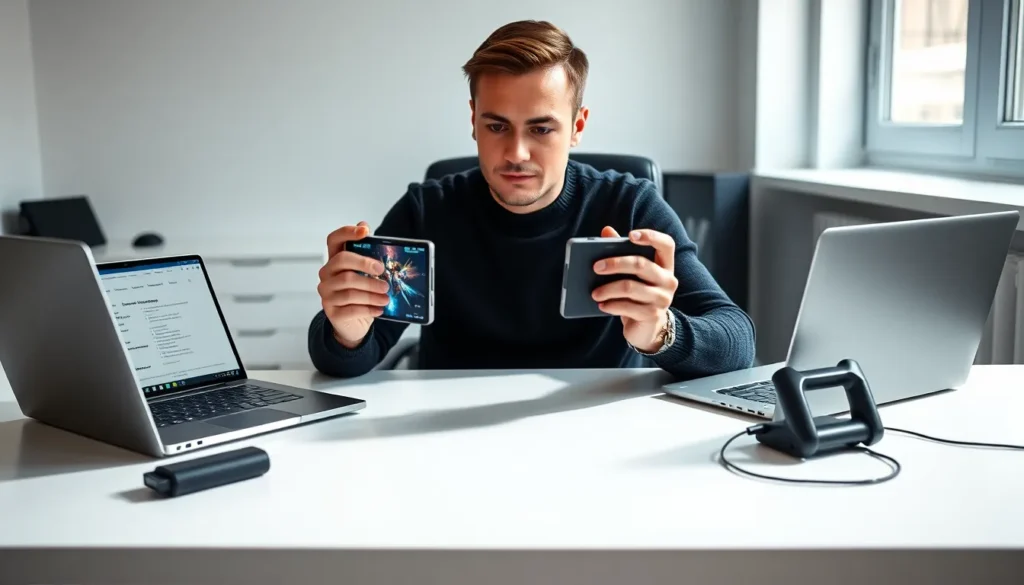
The detachable controllers represent a standout feature that enables unique Lenovo Legion Go techniques. Unlike most handheld devices, the Legion Go allows players to remove both controllers and use them independently or with the included controller grip.
FPS Mode transforms the right controller into a vertical mouse-like device. Removing the controller and placing it on a flat surface activates this mode through the trackpad on its back. The analog stick becomes a mouse sensor, while the triggers function as mouse clicks. This setup provides superior aiming precision for first-person shooters compared to traditional thumbstick controls.
Setting up FPS Mode requires a few steps. First, detach the right controller. Second, flip the small kickstand on the controller’s back. Third, enable FPS Mode in Legion Space settings. The sensitivity can be adjusted to match personal preferences and specific game requirements.
Other Lenovo Legion Go techniques with detached controllers include using them separately for local multiplayer. Some games support split Joy-Con style play, though the large controller size makes this less comfortable than on smaller handhelds.
The controller grip accessory combines both detached controllers into a traditional gamepad form factor. This configuration works well when the Legion Go sits on a desk or connects to an external monitor. Players gain a familiar controller experience while the main unit handles display and processing duties.
Battery Management and Power Efficiency Tips
Battery life concerns every portable gaming enthusiast. The Legion Go packs a 49.2Wh battery that provides roughly 2-3 hours of intensive gaming. These Lenovo Legion Go techniques help extend playtime significantly.
Screen brightness affects battery consumption heavily. Reducing brightness to 40-50% saves considerable power without making the display difficult to see in most lighting conditions. The auto-brightness feature works reasonably well but tends to set levels higher than necessary.
Disabling Wi-Fi when playing offline games provides another easy win. The wireless radio draws constant power even when idle. Airplane mode cuts this drain entirely and can add 15-20 minutes to gaming sessions.
Lenovo Legion Go techniques for power management also include using the right performance profile. Many users default to Performance mode unnecessarily. Testing games on Balanced or even Quiet mode often reveals that these lower-power settings run titles perfectly fine. Save Performance mode for games that genuinely need it.
Windows background processes consume resources and battery. Closing unnecessary applications, disabling startup programs, and preventing automatic updates during gaming sessions helps conserve power. Legion Space includes options to suppress Windows notifications and background activities.
Carrying the 65W charger enables extended gaming sessions. The device supports USB-C Power Delivery, so compatible third-party chargers and power banks also work. A 65W power bank can effectively double or triple total playtime away from outlets.
Customizing Legion Space for Your Playstyle
Legion Space serves as the central hub for applying Lenovo Legion Go techniques effectively. This custom interface sits atop Windows and provides streamlined access to games, settings, and device management.
The game library in Legion Space aggregates titles from Steam, Epic Games Store, GOG, Xbox Game Pass, and other platforms. Adding games manually ensures everything appears in one place. Right-clicking any game opens options for custom controller mappings, performance profiles, and launch parameters.
Controller mapping customization stands out as one of the most powerful Lenovo Legion Go techniques available. Legion Space allows complete remapping of every button. Players can assign keyboard keys, mouse inputs, or macros to any controller button. This flexibility proves invaluable for games with poor or missing controller support.
Creating game-specific profiles saves these configurations automatically. When launching a game, the device loads the associated controller map, TDP setting, and display configuration instantly. This eliminates repetitive manual adjustments.
Legion Space also includes quick tiles for common actions. Users can customize which tiles appear and their arrangement. Frequently accessed settings like RGB lighting, fan speed curves, and display refresh rate deserve prominent placement.
Exploring the advanced settings reveals additional Lenovo Legion Go techniques. Options for gyroscope sensitivity, touchpad behavior, and trigger dead zones allow precise tuning. Spending time with these settings pays dividends in gameplay comfort and responsiveness.


