
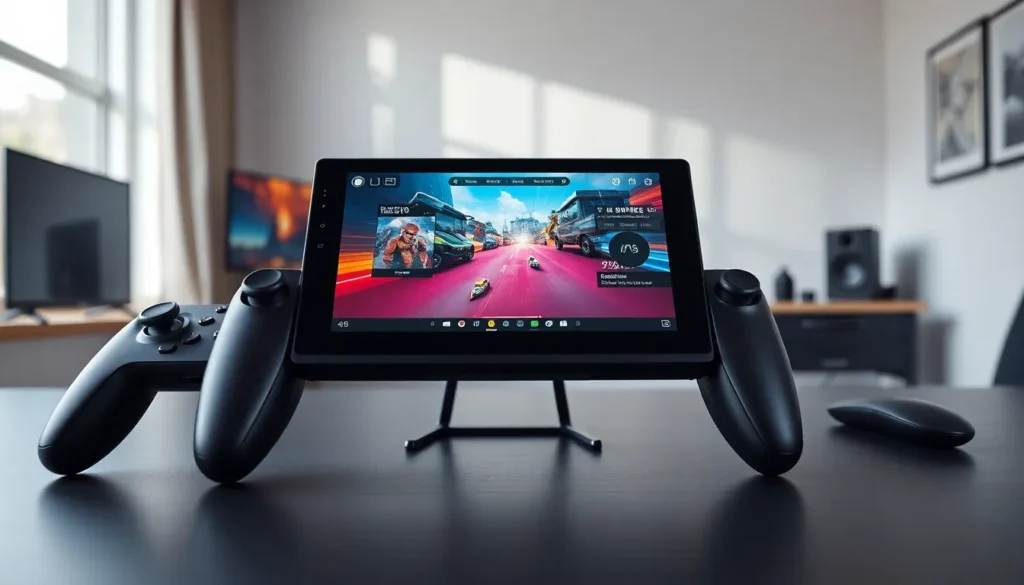

The Lenovo Legion Go stands as one of the most powerful handheld gaming PCs on the market. This Lenovo Legion Go guide covers everything users need to know about this Windows-based portable device. From initial setup to performance optimization, gamers will find practical tips to get the most from their investment. The Legion Go features an 8.8-inch display, detachable controllers, and impressive hardware specs that rival many gaming laptops. Whether someone just unboxed their device or they’re considering a purchase, this guide breaks down the essential details.
Table of Contents
ToggleKey Takeaways
- The Lenovo Legion Go features an 8.8-inch display, AMD Ryzen Z1 Extreme processor, and detachable controllers that make it one of the most powerful handheld gaming PCs available.
- Complete initial setup in about 30 minutes by configuring Windows 11, updating drivers, and setting up the Legion Space app for unified game management.
- Extend battery life by lowering resolution, capping frame rates at 40-60fps, and using Balanced mode instead of Performance mode.
- The detachable Legion TrueStrike controllers include Hall effect joysticks, motion controls, and a unique FPS mode for mouse-style aiming in shooters.
- Enhance your Lenovo Legion Go experience with essential accessories like a carrying case, microSD card for expanded storage, and a USB-C dock for desktop gaming.
Key Specifications and Features
The Lenovo Legion Go packs serious hardware into a portable form factor. At its core sits the AMD Ryzen Z1 Extreme processor, which delivers up to 8.6 teraflops of graphics performance. This chip handles demanding games with surprising ease.
Here are the standout specs:
- Display: 8.8-inch IPS LCD with 2560 x 1600 resolution and 144Hz refresh rate
- RAM: 16GB LPDDR5X
- Storage: 512GB or 1TB NVMe SSD (expandable via microSD)
- Battery: 49.2Wh capacity
- Weight: 854 grams with controllers attached
The Legion Go’s screen is its biggest differentiator. That 8.8-inch panel dwarfs competitors like the Steam Deck and ASUS ROG Ally. Games look sharp, and the high refresh rate delivers smooth visuals during fast-paced action.
Lenovo built in a kickstand on the back of the device. Users can prop up the Legion Go on any flat surface. This feature works perfectly with the detachable controllers for a tabletop gaming experience.
The device runs Windows 11, which gives players access to Steam, Epic Games Store, Xbox Game Pass, and other PC gaming platforms. This flexibility is a major advantage for anyone with an existing game library.
Setting Up Your Legion Go
Getting started with the Legion Go takes about 30 minutes. The initial Windows setup walks users through account creation, Wi-Fi connection, and basic preferences.
After Windows boots up, Lenovo’s Legion Space app launches automatically. This software serves as the central hub for game management. It pulls titles from various storefronts into one unified interface. Users should spend time configuring this app, it makes launching games much faster.
Here’s a quick setup checklist:
- Complete Windows 11 setup and sign in with a Microsoft account
- Connect to Wi-Fi and run Windows Update
- Update Legion Space through the Microsoft Store
- Download AMD drivers from Lenovo’s support page
- Install preferred game launchers (Steam, Xbox app, etc.)
- Calibrate the controllers through Windows settings
The Legion Go benefits from a full charge before first use. Lenovo recommends charging for at least two hours. The included 65W charger reaches full capacity in about 80 minutes.
One tip: create a local Windows account if privacy matters. Microsoft pushes users toward online accounts, but a local setup works fine for gaming.
Optimizing Performance and Battery Life
The Legion Go offers multiple performance modes through Legion Space. Users can switch between Quiet, Balanced, Performance, and Custom profiles. Each mode adjusts power limits and fan speeds.
Performance mode pushes the Z1 Extreme to its limits. Games run at higher frame rates, but battery life drops significantly. Expect around 90 minutes of play time in this mode. Balanced mode extends battery to roughly two hours while maintaining playable performance.
For longer sessions, try these optimization tips:
- Lower the display resolution to 1280 x 800 in demanding games
- Cap frame rates at 40fps or 60fps instead of 144fps
- Reduce in-game graphics settings (shadows and reflections drain power fast)
- Disable RGB lighting on the controllers
- Use airplane mode when playing offline games
The Legion Go also supports AMD’s FSR (FidelityFX Super Resolution) technology. FSR upscales lower resolutions to look sharper. Many modern games include FSR support, and it provides a meaningful performance boost.
Thermal management matters on portable devices. The Legion Go runs warm during intense gaming. Playing in cooler environments helps maintain consistent performance. Avoid blocking the vents on the back of the device.
Custom TDP (Thermal Design Power) settings let advanced users fine-tune power consumption. Lowering TDP to 15W extends battery life significantly while still running less demanding titles smoothly.
Using the Detachable Controllers
The Legion Go’s detachable controllers set it apart from other handhelds. These controllers slide off the sides of the device and function independently. Lenovo calls them Legion TrueStrike controllers.
The right controller includes a unique feature: an FPS mode. The controller transforms into a vertical mouse-like grip for first-person shooters. A small trackball on the back provides mouse-style aiming. This setup takes practice, but some players prefer it for shooters.
Controller specifications include:
- Hall effect joysticks (resistant to drift over time)
- Hall effect triggers with adjustable travel
- Two rear buttons on each controller
- Gyroscope for motion controls
- 900mAh battery in each controller
The controllers connect via Bluetooth when detached. They also work with the included controller grip, which combines both halves into a traditional gamepad shape. This grip makes the Legion Go feel like a console controller.
Button mapping happens through Legion Space. Users can reassign any button and create custom profiles for different games. The software saves multiple configurations.
Some games struggle with the FPS mode. Titles need proper mouse support for this feature to work well. Stick with the standard controller layout for games designed around gamepad input.
Best Games and Accessories
The Legion Go handles most PC games admirably. But, some titles run better than others on this hardware.
Games that run great:
- Hades
- Vampire Survivors
- Stardew Valley
- Hollow Knight
- Persona 5 Royal
- Hi-Fi Rush
- The Witcher 3 (with FSR)
Games that require tweaking:
- Cyberpunk 2077 (playable at lower settings)
- Elden Ring (smooth at 720p)
- Baldur’s Gate 3 (needs resolution scaling)
- Starfield (struggles even with optimization)
Accessories enhance the Legion Go experience. Consider these additions:
Carrying Case: Lenovo sells an official case that protects the device during travel. Third-party options work too, but check the dimensions, the Legion Go is large.
Extra Charger: A second 65W USB-C charger for travel keeps the device topped up. Generic USB-C PD chargers work fine.
microSD Card: Expand storage with a high-speed microSD card. SanDisk and Samsung make reliable options. A 512GB card costs around $40.
Dock: USB-C docking stations turn the Legion Go into a desktop gaming PC. Connect a monitor, keyboard, and mouse for a full desktop experience. The device supports up to 4K output.
Screen Protector: The large display deserves protection. Tempered glass protectors prevent scratches and reduce glare.
Game Pass Ultimate deserves special mention. The subscription gives access to hundreds of games, and cloud gaming works well for less demanding play sessions.


